
Happy 2010 Year!
there are precious memories in 2009,
do you perpare to make a new year card with your photos?
OK, Give your advice here.
Tuesday, December 29, 2009


Tuesday, December 15, 2009
Free Christmas iPhone Wallpaper
Do you ever want to customized christmas iPhone wallpaper? Let's go!
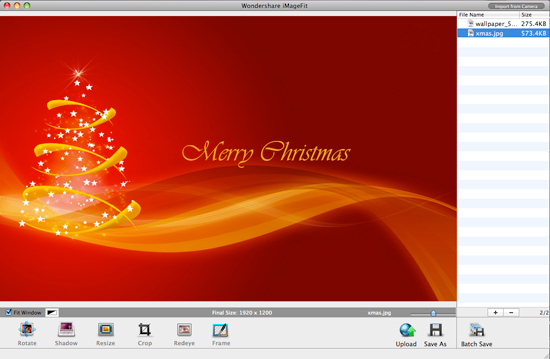
Step 1 Launch Program & Drag in Photos
Launch the program and then drag in christmas photos you try to make into iphone wallpaper into the program. Of course, you can drag more than one photo make more wallpaper once.
Step 2 Crop Photo to iPhone Wallpaper Size
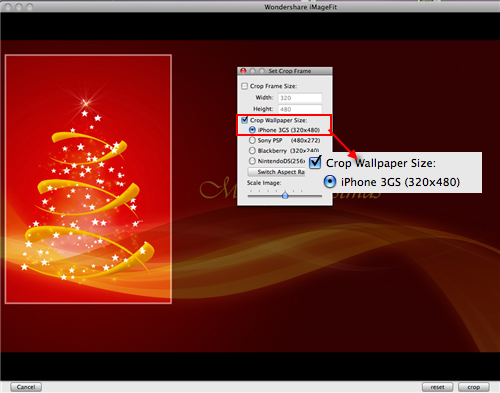
Click Crop button, choose iPhone 3GS wallpaper crop size and crop photo according to the specific frame requested size.
Step 3 Save Your Christmas iPhone Wallpaper
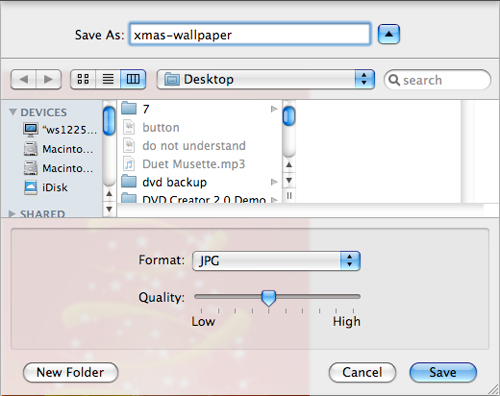
After cropping, click Save As button to save your finished edited christmas iPhone wallpaper. Type in your wallpaper name and choose the photo format you want to save as.
Step 4 Send Wallpaper to iPhone
After saving, you can use iTunes to send this christmas iPhone wallpaper to your iPhone and use it as your new wallpaper. It is easy and simple, try yourself now!

Here you also can get free christmas iPhone wallpaper

Step 1 Launch Program & Drag in Photos
Launch the program and then drag in christmas photos you try to make into iphone wallpaper into the program. Of course, you can drag more than one photo make more wallpaper once.
Step 2 Crop Photo to iPhone Wallpaper Size
Click Crop button, choose iPhone 3GS wallpaper crop size and crop photo according to the specific frame requested size.
Step 3 Save Your Christmas iPhone Wallpaper
After cropping, click Save As button to save your finished edited christmas iPhone wallpaper. Type in your wallpaper name and choose the photo format you want to save as.
Step 4 Send Wallpaper to iPhone
After saving, you can use iTunes to send this christmas iPhone wallpaper to your iPhone and use it as your new wallpaper. It is easy and simple, try yourself now!
Here you also can get free christmas iPhone wallpaper
Monday, November 30, 2009
Make Christmas Card on Mac
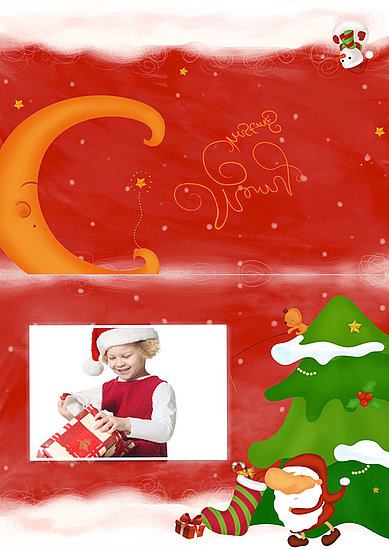
Christmas Day is one of happiest times in our life, and everything that most of us do every year is to prepare gifts and Christmas greeting cards, but, sometimes a greeting card that made from an old photo would mean a lot more than any gift to those who you love, because it is not just a card with colorful pictures and warming words, it may remind those happy times that spent togther, refresh those good old memeries, strenthen the relationship with each other and so on.
Are you still confused about how to make Christmas greeting cards? Don't worry, follow the steps below, let's DIY togther.
Step 1: Prepare your favorite photos
Step 2: Launch the iCollage for Mac (Free download)
Step 3: Choose the Christmas card Template
Step 4: Drag Photos to the Template and Edit them
Step 5: Export the Edited Card
You can get all the cards i made for free if you like them.

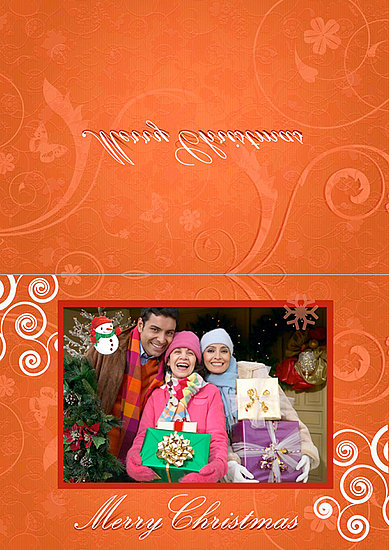
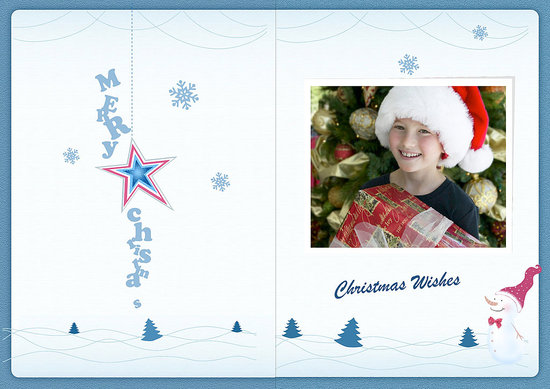
Learn to Make Christmas Greeting Card on Mac

Are you still confused about how to make Christmas greeting cards? Don't worry, follow the steps below, let's DIY togther.
Step 1: Prepare your favorite photos
Step 2: Launch the iCollage for Mac (Free download)
Step 3: Choose the Christmas card Template
Step 4: Drag Photos to the Template and Edit them
Step 5: Export the Edited Card
You can get all the cards i made for free if you like them.
Learn to Make Christmas Greeting Card on Mac
Tuesday, November 17, 2009
How to Make Christmas Calendar on mac
Christmas Day is an annual holiday celebrated on December 25 that commemorates the birth of Jesus of Nazareth, you will get the chance to make a special christmas calendar, Here let's make calendar together!
Step 1: Launch iCollage for Mac and Choose the Suitable Template
Free Download the iCollage for Mac and Launch it, select "Create a New Collage". Then Choose the Calendar template you like.
Step 2: Edit Your Calendar Template
Drag photo to the template and add some elements to the calendar. Click Decoration and drag elements from "My Element" to mark some special day. Click Textbox to write down some words to remind you the Christmas day.
Step 3: Print Out Your Calendar
After editing, you can click Print button and start the print settings. You can also preview the print effect before printing. Click Print button after finishing setting.
Print out the twelve months and you will have a beautiful handcraft calendar. Of course, you can make more to send to your family and friends!
Also iCollage released 2010's calendar templates. you can free download the templates.

Step 1: Launch iCollage for Mac and Choose the Suitable Template
Free Download the iCollage for Mac and Launch it, select "Create a New Collage". Then Choose the Calendar template you like.
Step 2: Edit Your Calendar Template
Drag photo to the template and add some elements to the calendar. Click Decoration and drag elements from "My Element" to mark some special day. Click Textbox to write down some words to remind you the Christmas day.
Step 3: Print Out Your Calendar
After editing, you can click Print button and start the print settings. You can also preview the print effect before printing. Click Print button after finishing setting.
Print out the twelve months and you will have a beautiful handcraft calendar. Of course, you can make more to send to your family and friends!
Also iCollage released 2010's calendar templates. you can free download the templates.
Make Christmas Card With Free Template
Christmas Day is an annual holiday celebrated on December 25 that commemorates the birth of Jesus of Nazareth. The day marks the beginning of the larger season of Christmastide, which lasts twelve days.
Sending a christmas card to express our greeting seems never be out of fashion. Check how to make Christmas card on Mac with iCollage now!
Step 1: Launch the iCollage for Mac
Free download iCollage
Step 2: Choose the Suitable Template from Card Category
Step 3: Drag Photos to the Template and Edit Photos
Step 4: Export the Edited Card
Read details: Use Christmas Card Template to Make Card on Mac

Sending a christmas card to express our greeting seems never be out of fashion. Check how to make Christmas card on Mac with iCollage now!
Step 1: Launch the iCollage for Mac
Free download iCollage
Step 2: Choose the Suitable Template from Card Category
Step 3: Drag Photos to the Template and Edit Photos
Step 4: Export the Edited Card
Read details: Use Christmas Card Template to Make Card on Mac
Thursday, November 12, 2009
How to Burn VIDEO_TS to DVD
How to Burn VIDEO_TS to DVD on Mac?
It sounds like the DVD Movies we downloaded is a pre-built DVD of some kind. The directory structure for DVD movies typically puts all the movie content and menus in a VIDEO_TS folder. Now, if you want to Backup the VIDEO_TS (DVD Folder) to DVD disc for playback on your Mac computer or home DVD player, what should we do?
DVD Creator Std is professional software to Burn VIDEO_TS file to DVD with simple and practical edit function.
You can Free download VIDEO_TS to DVD Burner for Mac.
Then just follow 3 steps:
Choose VIDEO_TS to import file ------ Drag VIDEO_TS to Program ------ Burning VIDEO_TS to DVDChoose Video Type to Import File
There are 4 video types, now you need to choose "VIDEO_TS".
Drag your VIDEO_TS File to the Program
You can select the "+" to add the VIDEO_TS file to the program; you also can drag the VIDEO_TS file directly to the program.
Start Burning VIDEO_TS File
Click the "Burn" button, you will see a setting interface to rename your DVD and set your DVD burning speed, then you can sit back and wait while your new disc gets written!
After finished, you can watch the DVD on your home DVD player. Enjoy and share it. Why not try?
More details from: How to Burn VIDEO_TS file to DVD on Mac >>
Wednesday, November 4, 2009
Use Card Template to Make Card on Mac
Thanksgiving Day is a holiday celebrated primarily in Canada and the United States. there are lots of special day we will celebrate. Sending a card to express our greeting seems never be out of fashion. And the DIY card with specific photos would be much better than cards you just pick up from any stores. And iCollage for Mac would be a great assistant for you to make DIY greeting card. Check how to use card template to make greeting card on Mac with iCollage now!
Step 1: Launch the iCollage for Mac
Choose "Create a New Collage" to enter the main interface.
Step 2: Choose the Suitable Template from Card Category
Choose your favorite template from Card category or from other category to make your stylish greeting card. Select the template, click "Choose" button and go to the edit interface.
Step 3: Drag Photos to the Template and Edit Photos
Drag your photos into the template and begin to edit the photos. Click Mask and give your photos different shapes. Drag paste elements collected from other template in "My Element" file by clicking Decoration. And add text form for writing some greeting words in your card and change the Font and Color of the words.
Step 4: Export the Edited Card
Click Export button and output your greeting card, send it directly to your friends through mail or print it out.
Now you can share your DIY greeting card!
how to use card template to make greeting card on Mac

Step 1: Launch the iCollage for Mac
Choose "Create a New Collage" to enter the main interface.
Step 2: Choose the Suitable Template from Card Category
Choose your favorite template from Card category or from other category to make your stylish greeting card. Select the template, click "Choose" button and go to the edit interface.
Step 3: Drag Photos to the Template and Edit Photos
Drag your photos into the template and begin to edit the photos. Click Mask and give your photos different shapes. Drag paste elements collected from other template in "My Element" file by clicking Decoration. And add text form for writing some greeting words in your card and change the Font and Color of the words.
Step 4: Export the Edited Card
Click Export button and output your greeting card, send it directly to your friends through mail or print it out.
Now you can share your DIY greeting card!
how to use card template to make greeting card on Mac
Subscribe to:
Posts (Atom)


 Posts
Posts

